

5 tips to prepare for improving your Microsoft 365 Intranet
This article provides a set of tips and tricks for improving your Microsoft 365 Intranet.
We aim to cover a set of tips for both organisations with an existing Intranet or who are looking to implement one.
1. Invest time in you Azure Active Directory
Your organisation has a directory of all the people within it. Time and time again we see people buying other solutions and paying twice for something that is available out of the box.
So, spend some time tidying up your Azure Active Directory. Input the contact details such as mobile numbers, telephone numbers, office location, and job title. Also, add manager information as well.
Your Microsoft 365 Intranet and the people within it will thank you when they hover over peoples names suddenly they can see the contact information, what they do and importantly their manager.
The manager attribute is also important as it enables Microsoft 365 to build an organisation chart and finally when you start implementing processes such as requesting holiday and leave you will be able to automatically get the user’s manager to send the request to!


2. Provide a workspace for Internal Teams to work and departments to share their resources
The Intranet’s purpose is to provide a gateway into the organisation so that they can get things done. This means being able to find the information that they want and be able to work effectively with others.
At iThink 365 we have an information architecture that we propose which achieves that. The key is to have a separate SharePoint Department site from a Microsoft Teams area which is used for internal team collaboration.
The department site gives a department a way to share securely the documents, resources that they need to with the rest of the organisation. The Microsoft team site provides an area, which is still linked to the Intranet, where teams can collaborate securely and effectively to get their day-to-day jobs done.
If someone wants to find the latest information about Maternity or Paternity at your organisation, then they can search the Intranet and be taken to the Human Resources department site where they can read and digest the information.
3. Establish Champions within each department
For a successful Intranet, it needs to have content. Content needs to be kept up to date and people need to use the platform and get comfortable using it.
Your organisation will have a broad range of personalities, some who embrace technology, others who will need to be guided through it.
To get adoption of something within your business you need the masses to use it and that means there is a threshold that is broken, called crossing the chasm, where the early adopters and mainstream start seeing the value and adopting the way of work.
A great way of achieving this is by having two champions in each department. A champion is someone who are able to help and support the rest of the department with the Intranet and Microsoft 365. The champions lower the friction for users as they are people that are known and generally are friendly faces which makes asking for help much easier.
These champions help share ways of working, tips and tricks and also the success stories for where the Intranet / Microsoft 365 has helped the department get things done.
Finally, they can help by creating News stories and articles, helping identify content that should be shared by the department with the rest of the business.
All these activities help you have an Intranet which becomes a valuable resource to the organisation.
So, think about each department, who would make good champions?
4. Extend your reach with Email Newsletters
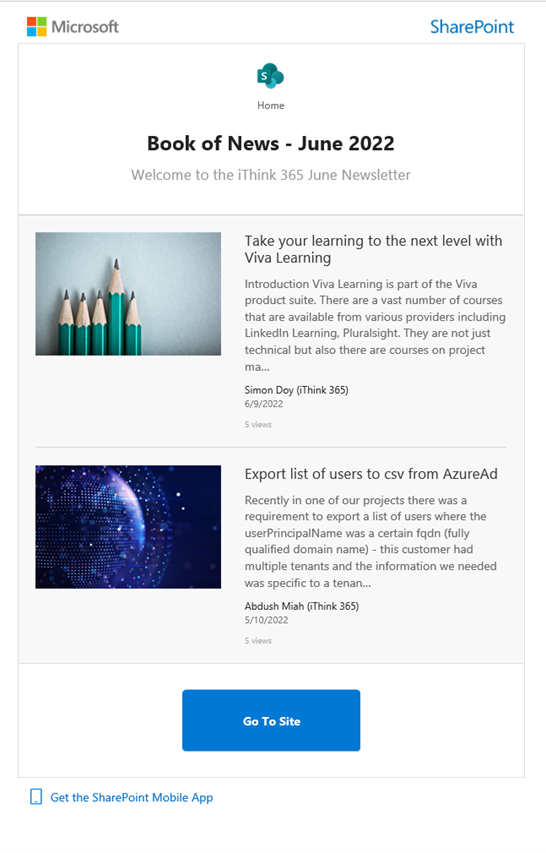
SharePoint has a great feature which can be used to create an email newsletter which is sent around the organisation. The benefit is that it brings people back into the Intranet and a good way of reminding people of what is going on.
We have seen a few customers spending several hours curating a newsletter which can now be created in a matter of a few minutes.
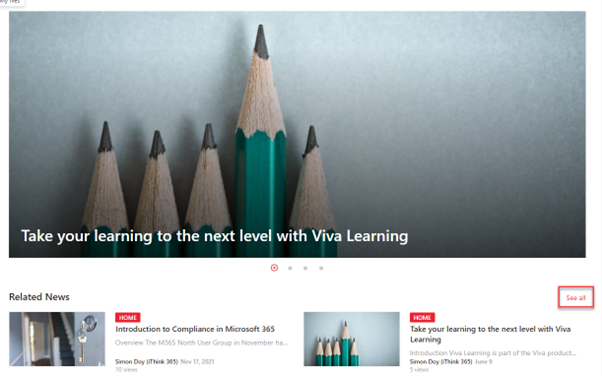
To get started you need to select a news web part and click on the See all link.
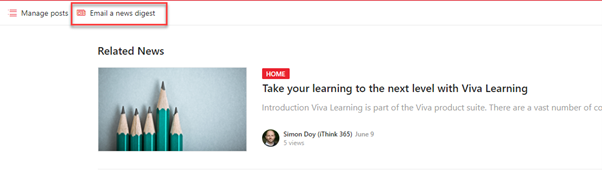
The following page will be displayed, click on “Email a news digest”.
Choose the news articles that make up the newsletter and click Next
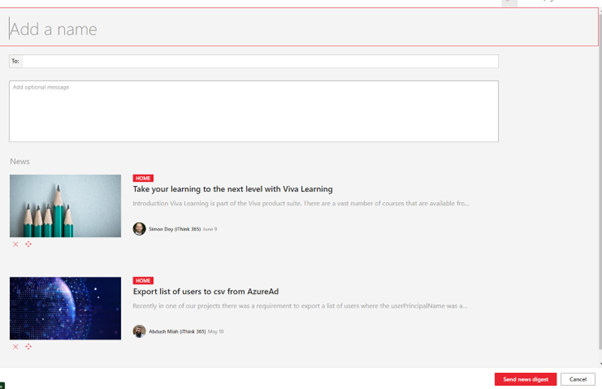
Provide a name, email address for the recipients, and a brief introduction for the news digest and then click “Send news digest”.
5. Get to know your SharePoint Web parts
Knowing what is possible with a product is going to save you lots of time and potentially money if it stops you buying a capability of something you already own.
SharePoint has a huge number of webparts, which are the widgets that can be added to a SharePoint Page.
Please spend some time getting to know them, here are some of our favourites.

Call to Action Web part
This webpart allows you to provide a brief call to action title, a button to perform the action and a background image to make the web part stand out.
Look at the following example:

It is a great way to highlight that a user needs to do something as they are reading your page.
File Viewer
This allows you to display the contents of a file on the page. Imagine you a member of Human Resources and are writing a news story about a new policy which people need to know about.
The File Viewer web part allows you to add the policy to the page so that your audience can start reading it straight away.

Hero webpart
If you have a number of links to related content then the Hero web part is a great way to sign post users to them.

Interested to learn more Microsoft 365 Intranet tips? Get in touch by contacting us here.
Related knowledge...
-

Beyond the Space “In Between” – Building Your Bridge to Enable AI at Scale
If you’ve watched Stranger Things, you’ll remember the ‘Upside Down’, that shadowy, unknown place that exists alongside our world. It looks familiar; the furniture is in the same place, but…
-

Microsoft 365 Frontier – A First Look at The Future of AI at Work
Artificial intelligence inside Microsoft 365 is evolving at a remarkable pace. New Copilot features and AI “agents” are arriving almost every month, and for many…
-

Real ROI From Agents: What Business Leaders Should Actually Measure
Agents aren’t valuable because they’re clever. They’re valuable because they create a higher‑performing organisation, one where work flows run smoothly, customers get better experiences, and teams can…